
Installer
Download the Windows installer (.exe) from the release page, run it and follow the wizard. Compared with the zip package, the installer writes the program into a chosen folder, creates shortcuts, is removed through Windows “Apps & features”, and ships the graphical desktop client.
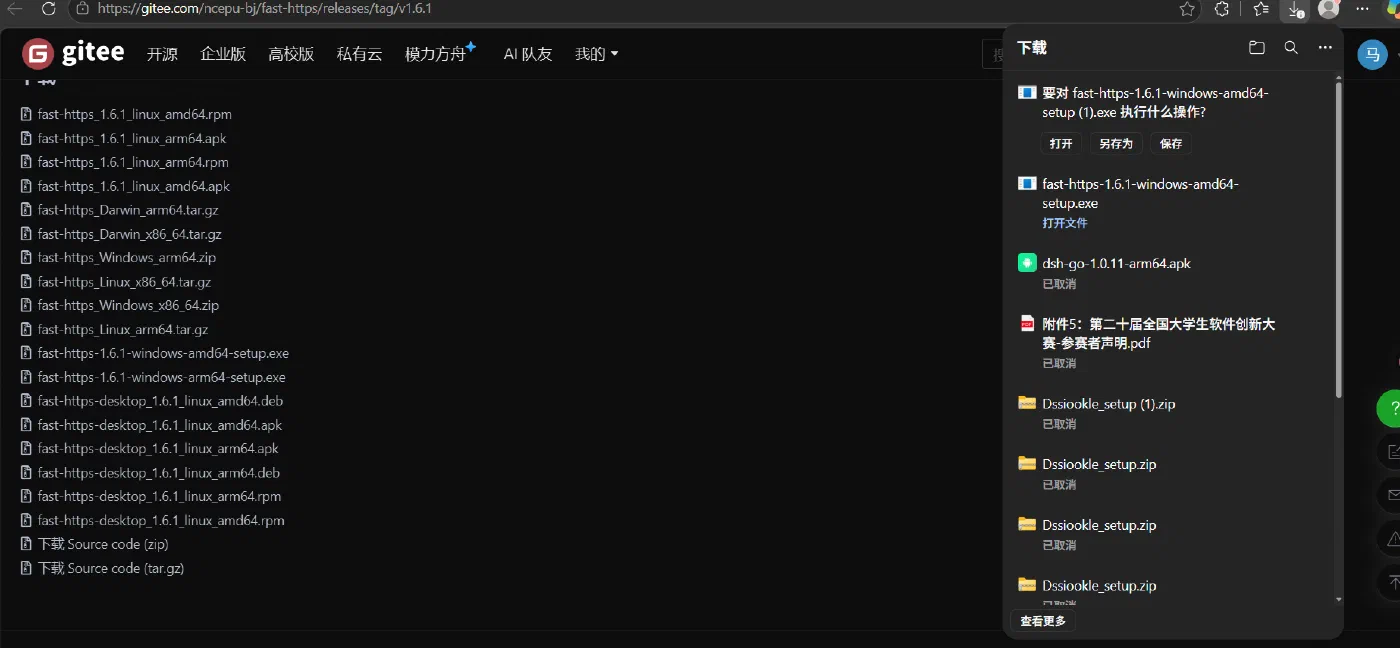
1 Download the installer
Find it in the v1.6.1 assets on the release page and download it:
fast-https-1.6.1-windows-amd64-setup.exe      # x64
fast-https-1.6.1-windows-arm64-setup.exe      # ARM64
Match on fast-https-<version>-windows-<arch>-setup.exe. The same page also offers fast-https_Windows_x86_64.zip if you prefer the portable build.
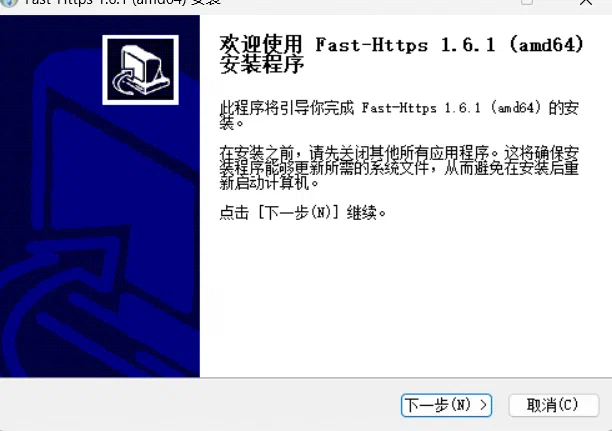
2 Run the wizard
Double-click the downloaded setup.exe. Accept the UAC prompt if Windows shows one.
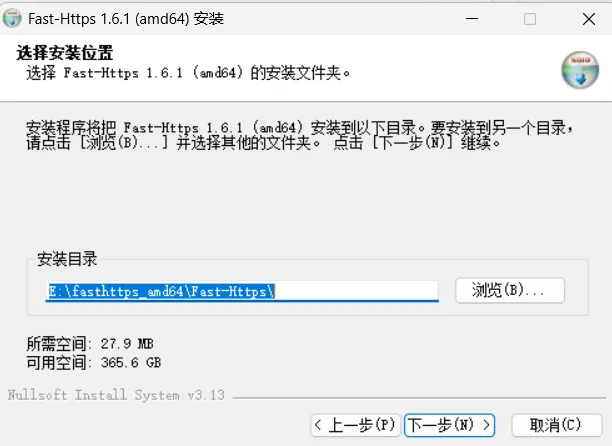
3 Choose the install folder
The default is E:\fasthttps_amd64\Fast-Https\, requiring about 30 MB. Use «Browse» to change it; a path without spaces or non-ASCII characters is recommended.
4 Finish the installation
Wait for the files to be written, then click «Next» to close the wizard.
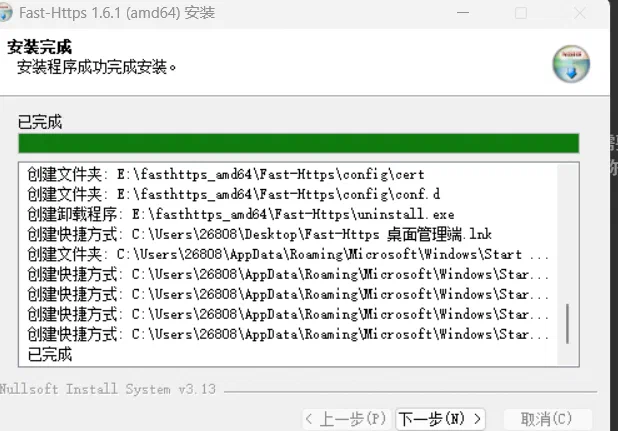
The installer creates a Fast-Https 桌面管理端 desktop shortcut, a Start-menu entry, and uninstall.exe.
5 Start and verify
Launch Fast-Https 桌面管理端 from the Start menu or the desktop shortcut; a tray icon appears in the notification area.
Visit in a browser:
http://localhost/
The Welcome to Fast-Https ! page means the installation succeeded.
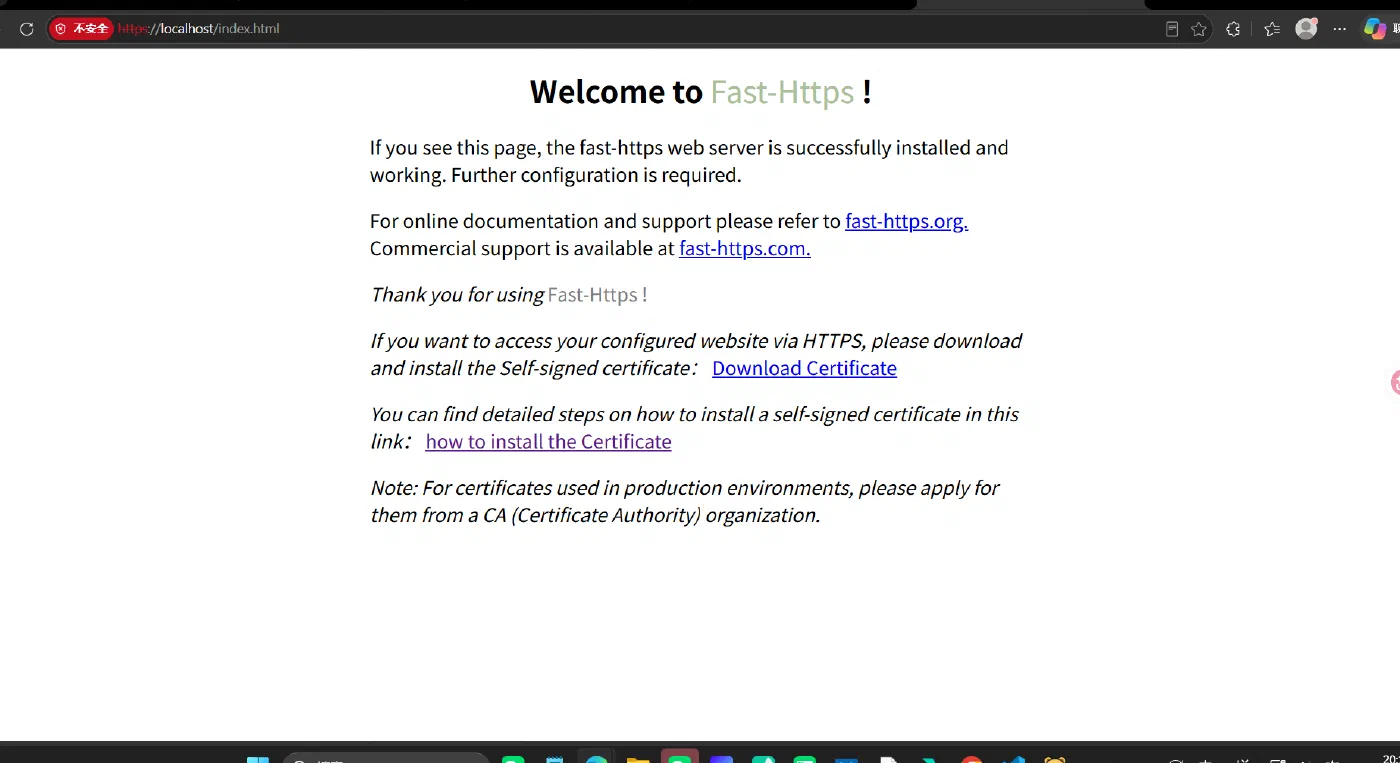
http://localhost/ or https://localhost/ — do not append :8080. The https://localhost:8080/index.html in older docs is the wrong port and results in "This site can't be reached".https://localhost/index.html: 443 uses a self-signed certificate generated on first start, so the browser shows "Not secure" — choose Advanced → Proceed. http://localhost/ shows no such warning. If ports 80/443 are already taken, edit listen in config/conf.d/default.json under the install folder and include the port in the URL.